Texture Channel Swizzle Tool
This tool allows you to quickly remap texture channels for optimized workflows, useful in shader development and texture packing.
Preview
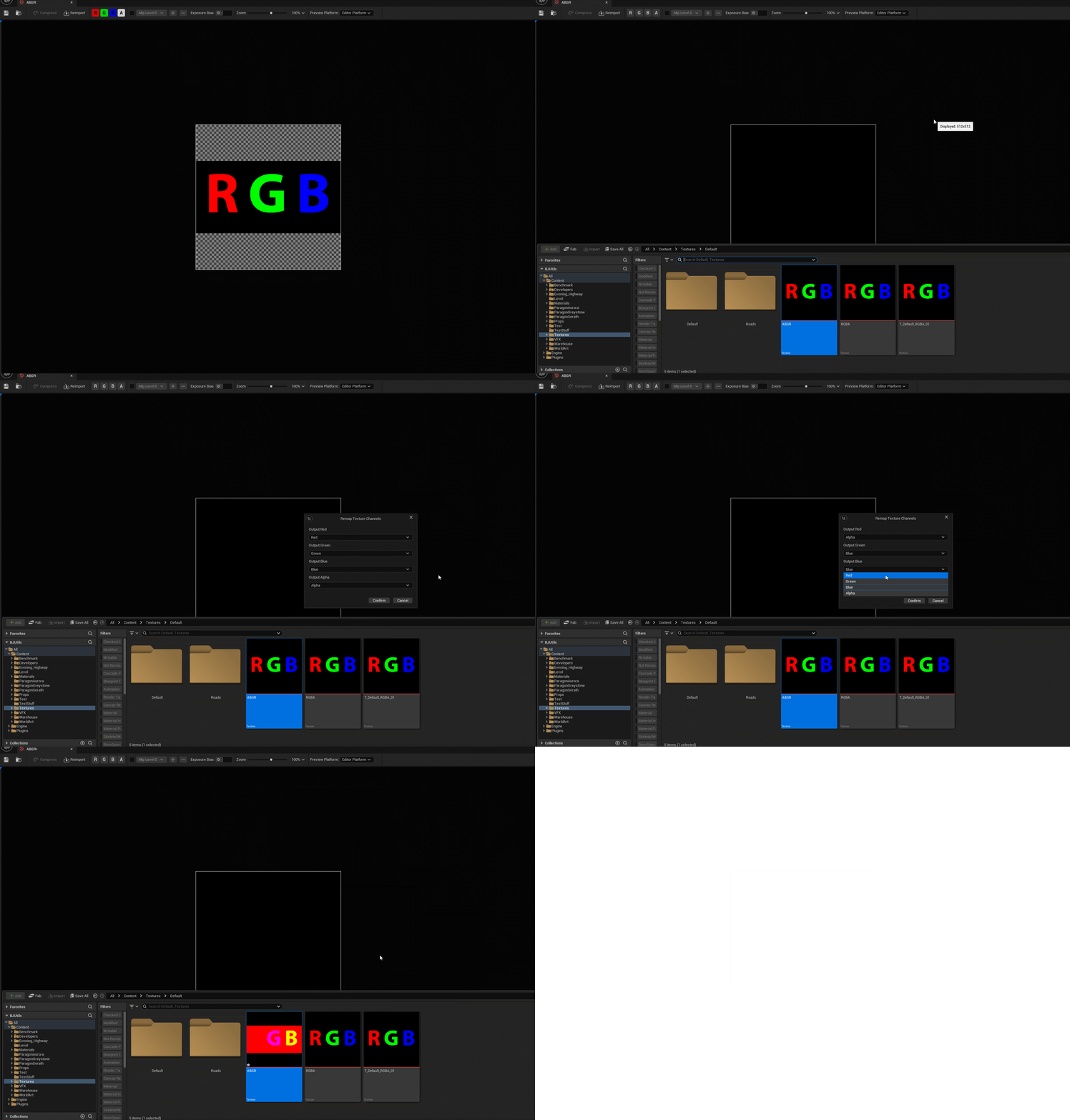
The UI shows individual channels (R, G, B, A) and lets you swizzle them into custom RGBA outputs. Ideal for PBR workflows using masks.
Texture Swizzle Tool – Unreal Editor Utility
The Texture Swizzle Tool is a custom Unreal Engine editor utility written in C++ that allows artists and technical artists
to remap the RGBA channels of a UTexture2D asset within the editor. It is fully integrated into the Unreal Editor
UI using
Slate, context menu extensions, and direct texture manipulation—no external tools required.
This tool is particularly useful for workflows involving mask packing, grayscale maps, and material functions that expect data in specific texture channels.
Technical Details
- Class:
FTextureEditorUtils::SwizzleChannels - Input:
UTexture2D*texture + channel mapping array (TArray<ETextureChannel>) - Output: Same texture asset with channel values rearranged
- Supported Format: Only
TSF_BGRA8(Unreal’s standard 8-bit per channel format) - Pixel Format: 4 bytes per pixel (BGRA layout)
How It Works
Channel Logic
- Internal helper maps
ETextureChannelto byte offsets (BGRA = 0, 1, 2, 3) - Iterates over each pixel of the texture
- Copies values from the selected source to the correct destination buffer slot
- Applies sRGB-to-linear conversion when writing RGB data to the Alpha channel
- Overwrites texture source data using
Init()and updates the asset
Menu Integration
- Registers a submenu under “Texture Tools” using
FContentBrowserModule - Adds a “Swizzle Texture Channels...” entry visible when right-clicking on
UTexture2Dassets - Opens a modal
SWindowwith four dropdowns for R, G, B, and A output channels - Calls the swizzle logic on confirmation for all selected textures
1. Content Browser Menu Extension
This system uses FContentBrowserModule and FExtender to integrate a context-sensitive menu
extension directly into Unreal’s Content Browser. This integration is registered in the module’s
StartupModule().
- Only activates if the selected asset is a
UTexture2D - Appends a new “Texture Tools” submenu, located just under the "Delete" entry
- Provides a clear, discoverable, and unobtrusive integration within the Editor UI
2. Swizzle Dialog – Custom UI Using Slate
The swizzle configuration interface is built using the Slate UI framework. A modal SWindow appears when
users select the “Swizzle Texture Channels...” menu item.
- Uses
SWindow,SVerticalBox, andSComboBoxto create a compact UI - Each output channel (R, G, B, A) is represented by a labeled dropdown menu
- User selections are stored in a
TArray<TSharedPtr<ETextureChannel>> - On confirmation, the dialog returns the channel mapping back to the caller
3. Texture Channel Swizzle Logic
The core logic is implemented in FTextureEditorUtils::SwizzleChannels(), which directly modifies texture
data at the pixel level.
- Ensures the texture is
TSF_BGRA8format - Accesses raw pixel data via
GetMipData()(first mip level) - Computes read/write byte indices based on channel enums
- Copies pixel data into a new buffer, applies swizzle, and writes it back
- Wraps operations in
FScopedTransactionfor undo support - Marks the asset dirty and calls
FAssetRegistryModule::AssetCreated()for browser refresh
sRGB to Linear Conversion
If a user maps an sRGB RGB channel into Alpha, the tool converts the value from sRGB to linear before writing. This maintains physically-based rendering correctness, especially in materials using alpha masks.
4. Module and Asset Action Registration
The tool is implemented inside a modular plugin (e.g., FBUtilitiesModule) and follows Unreal’s standard
plugin lifecycle practices.
StartupModule()sets up context menus, UI commands, and other hooksShutdownModule()ensures everything is cleanly unregistered- Other tools such as asset status tagging or actor selection utilities coexist within the same module
Why This Tool is Useful
- One-click Mask Packing: Quickly rearrange channels to pack grayscale maps (e.g., Roughness → R, Metalness → G, AO → B)
- sRGB-aware Conversion: Automatically handles sRGB to linear transitions when necessary
- Editor Integration: Available directly in the Content Browser without needing to open external tools
Features Summary
- Custom Channel Mapping: Remap output RGBA channels from any source
- sRGB to Linear Conversion: Automatically applied when required
- Non-Destructive Editing: Integrated with Unreal’s undo system via
FScopedTransaction - Asset Save Integration: Marks asset dirty and updates registry
- Direct MIP Editing: Operates on raw pixel data of Mip 0
- Context Menu UI: Cleanly embedded under “Texture Tools” in the right-click menu
- Modular Plugin: Part of a reusable, centralized editor utilities module
- Slate UI: Built with native Unreal UI framework for a responsive experience